
I have been running the Wazuh XDR and SIEM platform for nearly two years for my company server and lab environments in order to monitor and act on cybersecurity threats to my infrastructure. While there are more comprehensive enterprise commercial SIEM products in the market, Wazuh, without a doubt, has its place and is currently my go-to recommendation for mid-sized organisations needing a SIEM platform.
One significant missing piece within my own Wazuh environment was a lack of native integration with Ubiquiti UniFi products. Specifically, I am referring to Wazuh decoders and rules for UniFi OS and Networks. I can’t think of a bigger missing data source in a SIEM than perimeter firewall, router, and network logs.
TL;DR: Stop missing critical UniFi network logs in Wazuh! You can use these custom Wazuh decoders and rules for Ubiquiti UniFi from my forked unifi-wazuh GitHub repository: https://github.com/mattsimpson/unifi-wazuh
Or, continue reading for the background and full instructions.
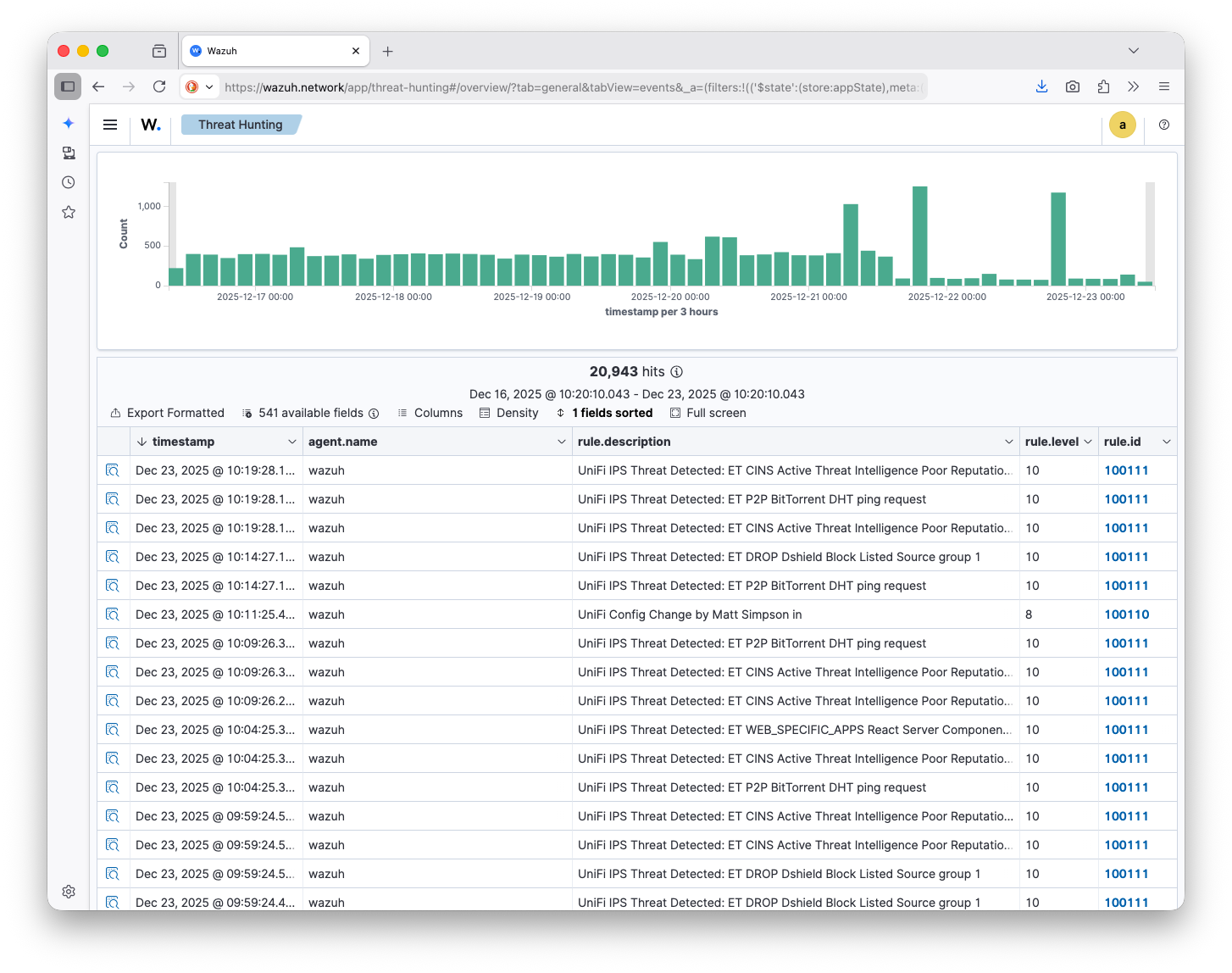
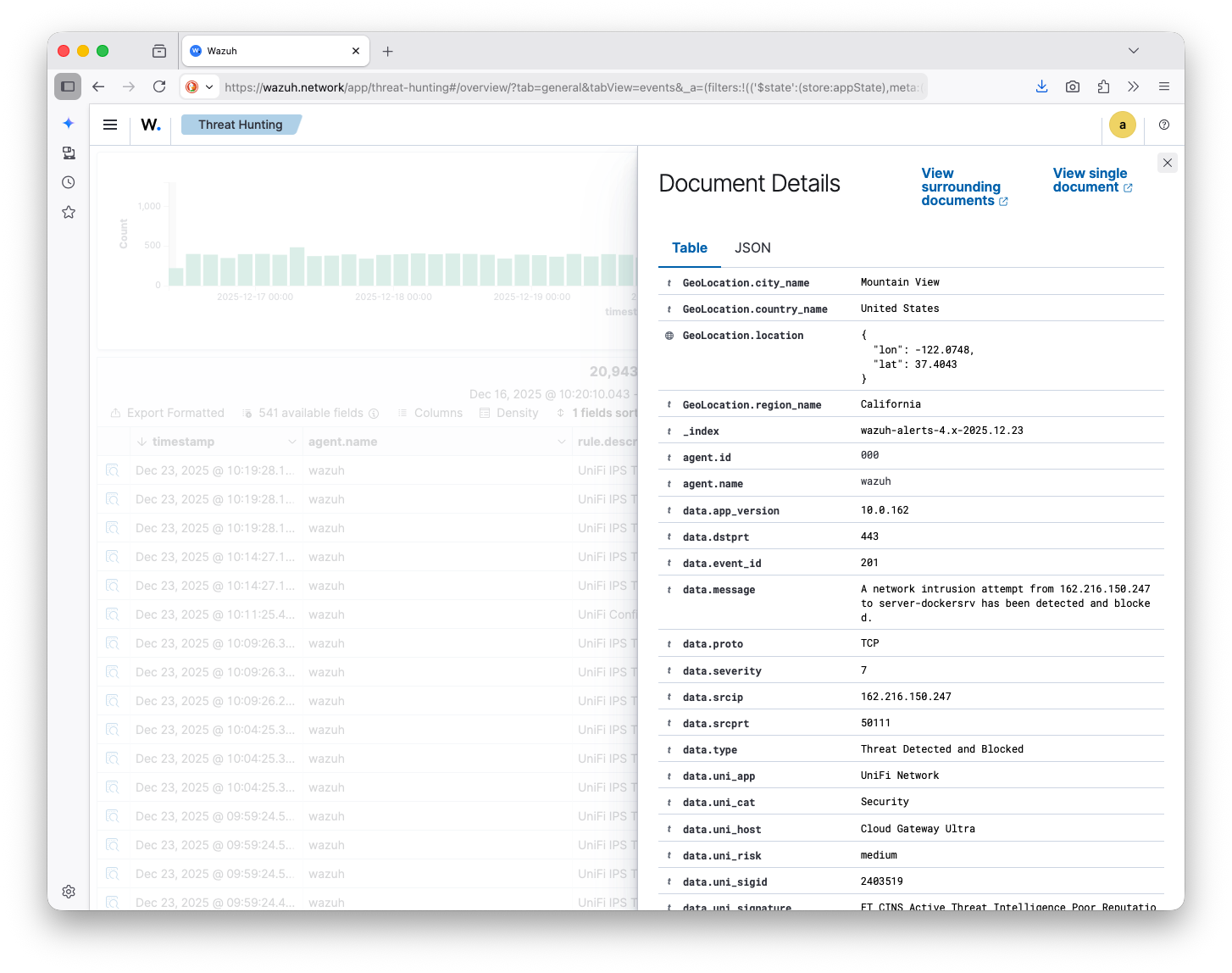
I sat down a number of times to create the necessary custom decoders and rules for this integration, but it wasn’t until recently, with inspiration from ph0tacular, that I got to a place I am quite happy with and wanted to share more broadly. As you will see in the following screenshots, my UniFi security events are now nicely displayed within Wazuh, allowing me to configure alerts, dashboards, and automated actions.
Configuration Instructions
1. Configure Syslog Input in Wazuh
By default, Wazuh is only configured to accept data from Wazuh agents, which means you need to explicitly tell Wazuh manager to listen for incoming syslog packets. This configuration is fully documented and pretty easy to do, but essentially:
- SSH into your Wazuh server.
- Edit the
/var/ossec/etc/ossec.conffile. Making sure to adjust theallowed-ipsvalue according to your network layout (e.g.,10.1.0.0/16,192.168.1.0/24), then add the whole block to the end of the file:
<ossec_config>
  <remote>
    <connection>syslog</connection>
    <port>514</port>
    <protocol>udp</protocol>
    <allowed-ips>192.168.1.0/24</allowed-ips>
    <local_ip>0.0.0.0</local_ip>
  </remote>
</ossec_config>- Restart Wazuh manager:
sudo systemctl restart wazuh-manager
2. Add the Unifi decoders and rules to Wazuh
- Go to my
unifi-wazuhGitHub repository: https://github.com/mattsimpson/unifi-wazuh - Star it on GitHub 🙂, then clone it to your local computer or the Wazuh server, then copy the
unifi_decoders.xmlandunifi_rules.xmlfiles to the corresponding Wazuhdecodersandrulesdirectories.
sudo cp unifi_decoders.xml /var/ossec/etc/decoders/unifi_decoders.xml
sudo cp unifi_rules.xml /var/ossec/etc/rules/unifi_rules.xml
Alternatively, you can simply download and save them to the correct location on your Wazuh server with curl:
sudo curl -o /var/ossec/etc/decoders/unifi_decoders.xml https://raw.githubusercontent.com/mattsimpson/unifi-wazuh/main/unifi_decoders.xml

sudo curl -o /var/ossec/etc/rules/unifi_rules.xml https://raw.githubusercontent.com/mattsimpson/unifi-wazuh/main/unifi_rules.xml
Lastly, set the permissions correctly on these two files. They should both be owned by wazuh:wazuh and set to 660.
sudo chown wazuh:wazuh /var/ossec/etc/decoders/unifi_decoders.xml /var/ossec/etc/rules/unifi_rules.xml
sudo chmod 660 /var/ossec/etc/decoders/unifi_decoders.xml /var/ossec/etc/rules/unifi_rules.xml
3. Configure your Ubiquiti gateway to send the logs
Now that Wazuh is configured to receive syslog input and also has log decoders and rules, you are ready to set your Ubiquiti gateway (e.g., Cloud Gateway Ultra) to send events to Wazuh.
- Log into your gateway.
- Click Settings > Control Plane > Integrations.
- For “Activity Logging (Syslog)” ensure “SIEM Server” is selected.
- Check off “Include Raw Logs”
- Enter the IP address of your Wazuh server, and keep the Port set to 514.
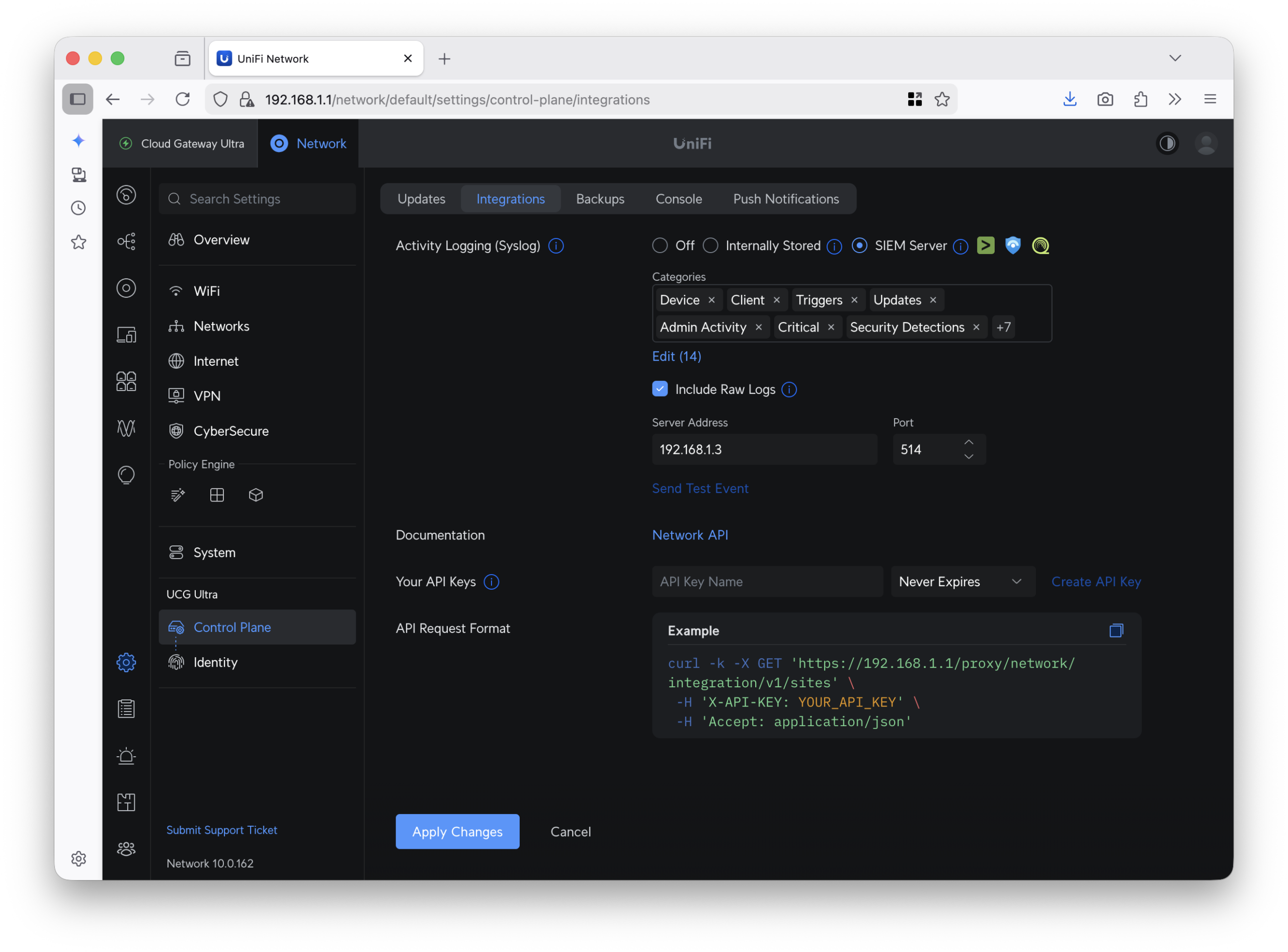
The only other thing you may need to do is ensure that the firewall will allow the gateway (e.g., 192.168.1.1) to connect to your Wazuh server on UDP 514.
Conclusion
By providing your UniFi firewall, router, and network logs to Wazuh you are providing the SIEM with the information it needs to alert you to potential threats and help you act quickly to avoid potentially devastating cybersecurity attacks to your infrastructure. Perhaps some day this post will be unnecessary as the integration will be native, but until then, I hope it’s helpful to someone else.
Feel free to leave a comment below or connect with me on Mastodon or reach out by email.